AISEO Gemini Watermark Remover: Clean Gemini AI Images Online Free
Remove the gemini watermark from your Gemini-generated image. Keep the frame intact and download a cleaned copy with three free removals a day.
Privacy Notice
Your file is uploaded to our servers when you start removal. Optional SynthID removal also uses a processing provider. An internet connection is required. Your original file on your device is not changed.
AISEO Gemini Watermark Remover: Erase the Visible Logo From Your Gemini AI Images
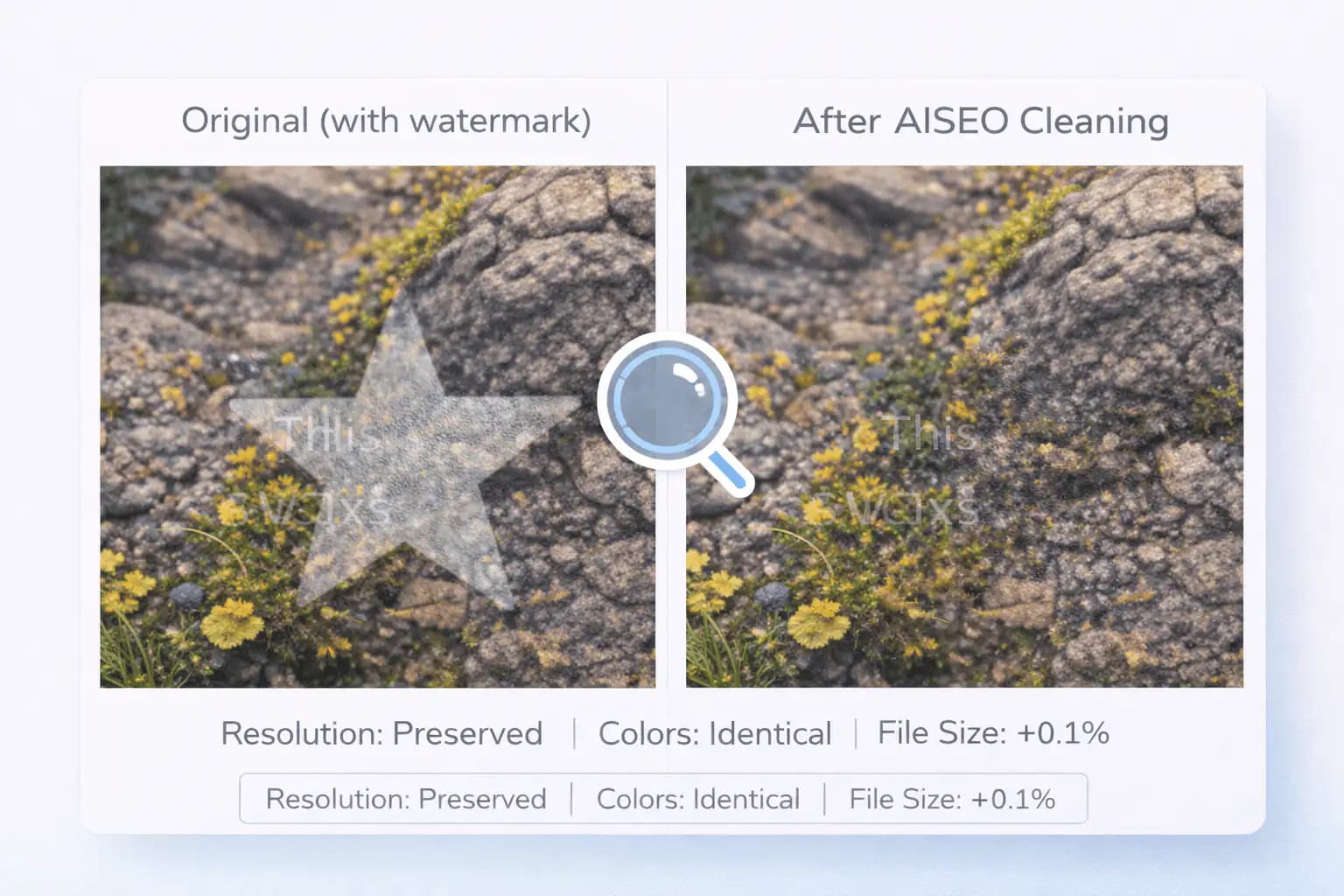
Google Gemini stamps a visible watermark on every image it generates. It's a small, semi-transparent four-pointed star that sits in the bottom-right corner, and it shows up on every AI-generated photo, whether you used the Gemini app, Google AI Studio, or any Gemini-powered API. The mark is subtle on its own, but once you see it, you can't unsee it. It pops up in slide decks, gets cropped off-center in social posts, and makes otherwise polished deliverables feel unfinished.
AISEO's gemini ai watermark remover targets that mark using a reversal of the watermark blending step. Drop your image in, start removal, and download a cleaned copy. No signup or installation is needed for the free allowance. Processing happens on our servers.
If you've been hunting for how to remove gemini watermark from your AI images without cropping the frame, AISEO provides a focused tool for this watermark. Review the cleaned result before using it in your project, especially if the source image has already been resized or compressed.
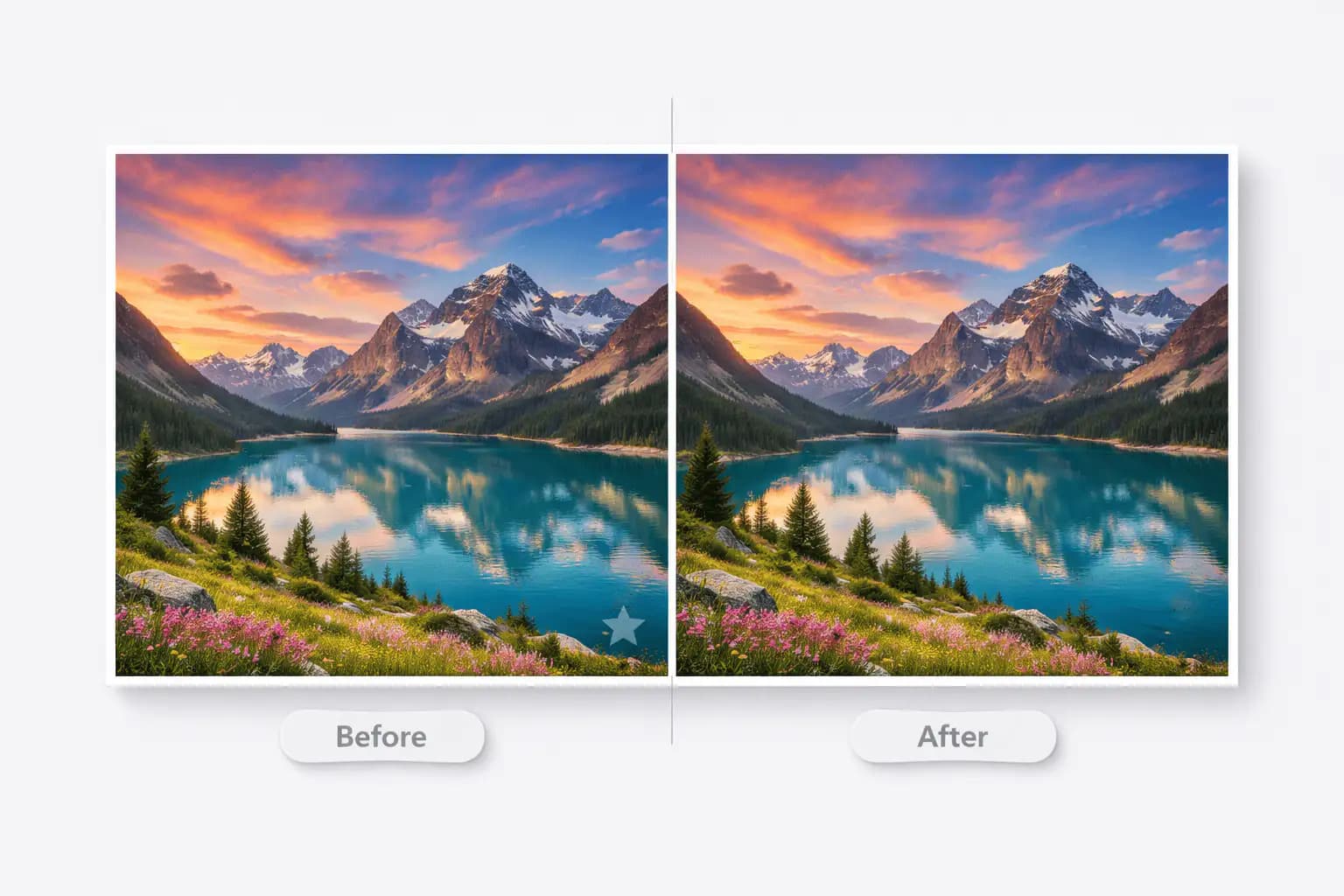
Does Gemini Have a Watermark?
Yes, every image Google Gemini generates ships with a visible watermark. It's a semi-transparent four-pointed star in the bottom-right corner of every AI-generated photo. Google applies the mark automatically. There's no toggle in settings, no Pro tier that hides it, and no clever prompt that makes it skip. If Gemini made the picture, the star is there.
What sets the Google Gemini watermark apart from a basic logo overlay is how it gets baked in. Google doesn't paste the star on top like a sticker. Instead, it uses a technique called alpha compositing, sometimes called alpha blending, to mix the watermark into your image's actual pixel values. The logo becomes part of the image data itself. You can't just select it and hit delete like you would with a text layer in Photoshop or Canva.
The watermark comes in two sizes that depend on your image dimensions. Smaller images, where either the width or height is 1024 pixels or less, get a 48×48 pixel mark with a 32-pixel margin from the corner. Larger images receive a 96×96 pixel version with a proportionally wider gap. The position, size, and blending values stay consistent across every Gemini image, which is exactly what makes automated gemini watermark removal possible. Because the pattern is predictable, a tool built specifically for this watermark can detect and reverse it with mathematical accuracy.
Most people first notice the Google Gemini AI image watermark when they try to use their AI photos in a real project, a slide deck, a social post, a product mockup. The star is small enough that you barely see it in a thumbnail, but zoom in or place it on a polished layout and it sticks out fast. That's why searches for a gemini watermark remover keep climbing, the images are great, but the logo gets in the way of using them.
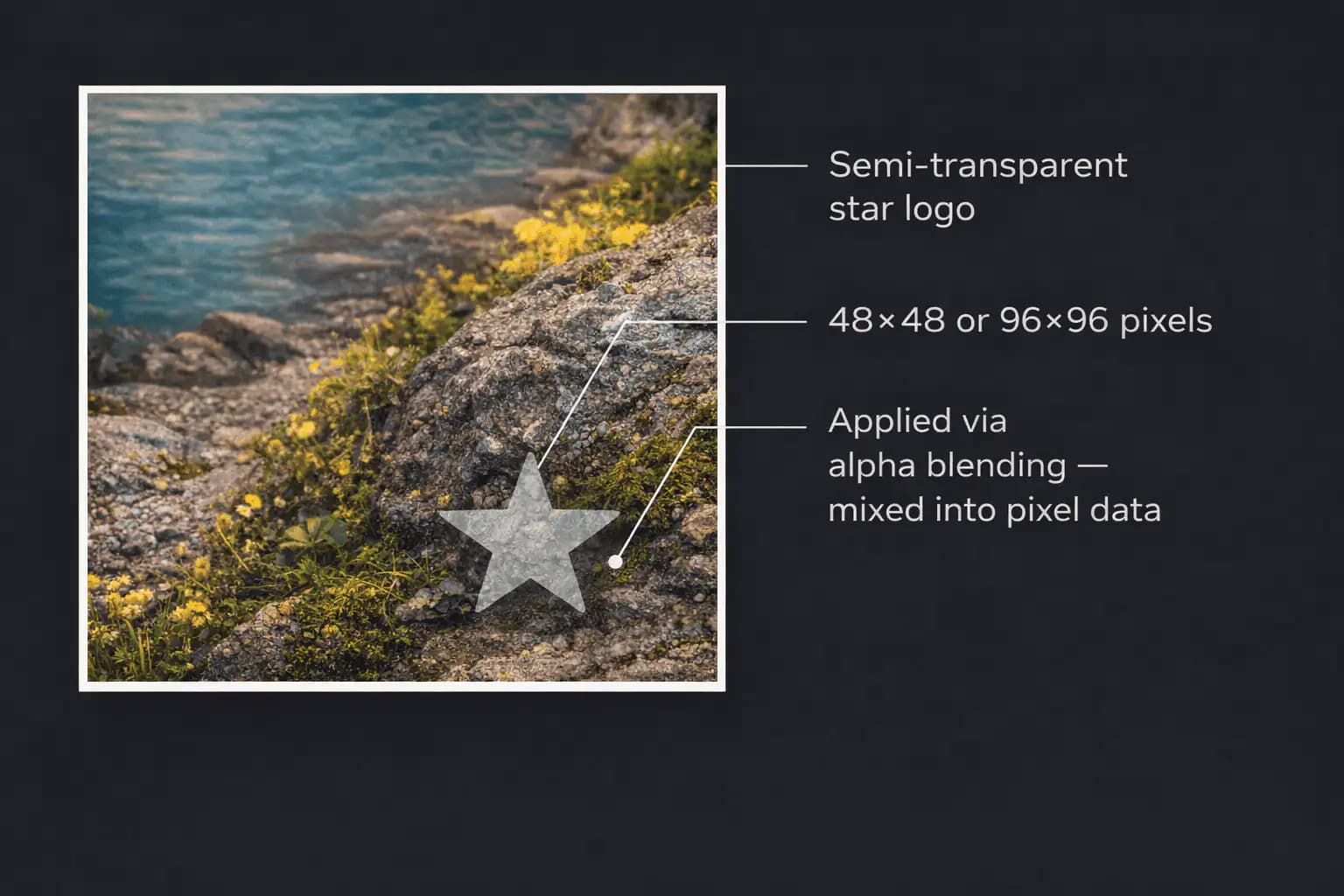
How the Google Gemini Watermark Gets Embedded
To understand how to remove google gemini watermark cleanly, it helps to see how the mark gets there in the first place.
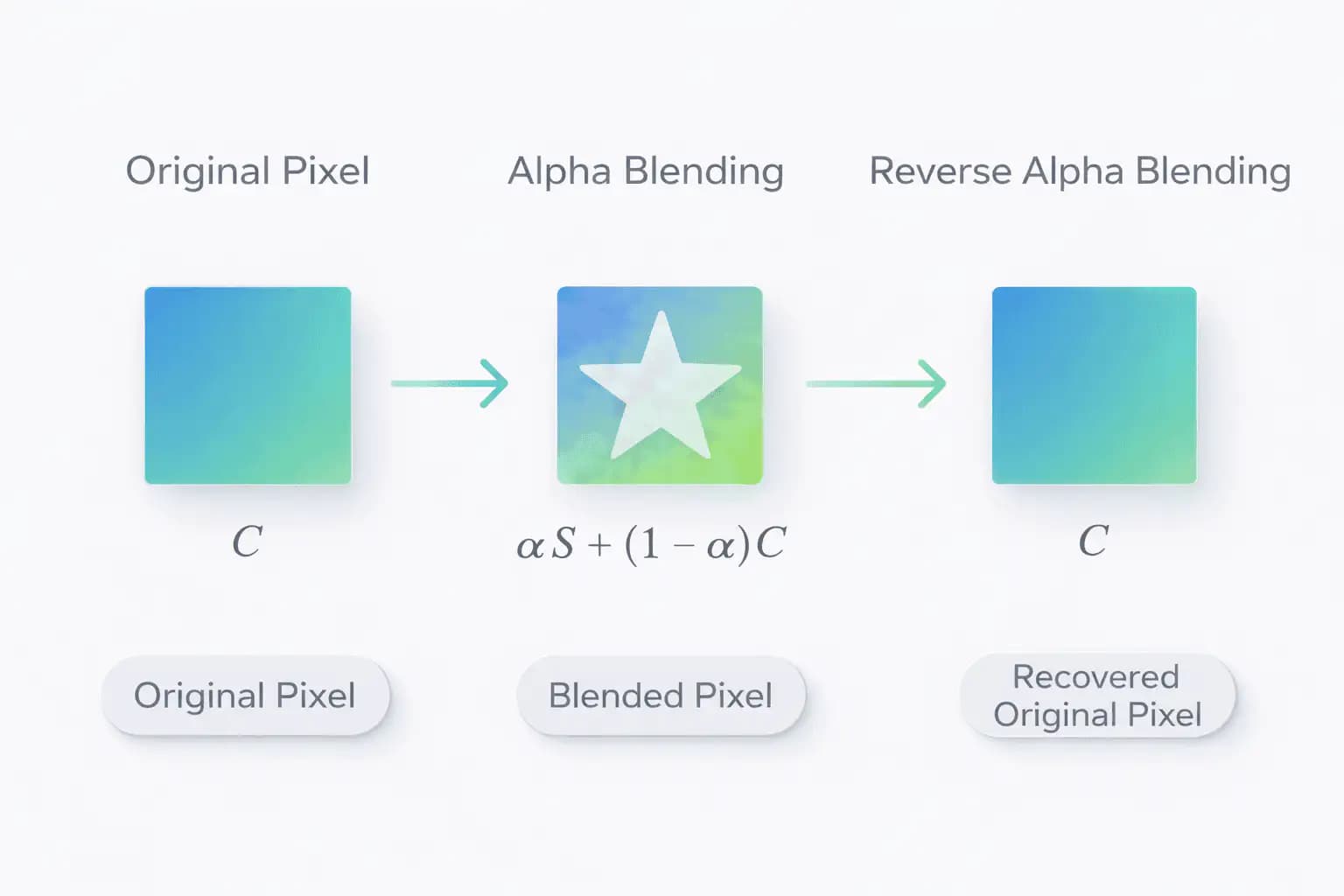
When Gemini renders an image, the final step applies the watermark with a mathematical blending formula. For every pixel inside the watermark region, the renderer takes the original pixel color, mixes it with the watermark's pixel color (and its transparency value), and produces a new blended pixel. The result is a semi-transparent overlay that appears to float above the image, but in reality, the original pixel values have been altered.
This is different from how most visible watermarks work. A basic watermark sits on a separate layer that you can toggle off or strip with layer-management tools. The Gemini watermark doesn't behave that way. There's no separate layer. The watermark and the image are one file, one set of pixels. That's why standard editing tools struggle with it. An eraser doesn't know what each pixel looked like before the blend. A clone stamp or healing brush can guess, but the result is never exact, especially over textures, gradients, or detailed backgrounds.
The good news is that alpha blending is a reversible mathematical operation. If you know the watermark's pixel values and the alpha (transparency) levels, both of which stay consistent across Gemini images, you can calculate the original pixel color that existed before the blend. That's exactly what the AISEO gemini watermark cleaner does. It applies the inverse formula to every affected pixel and restores the original image data with precision, which is why the cleaned region looks identical to what was there before.
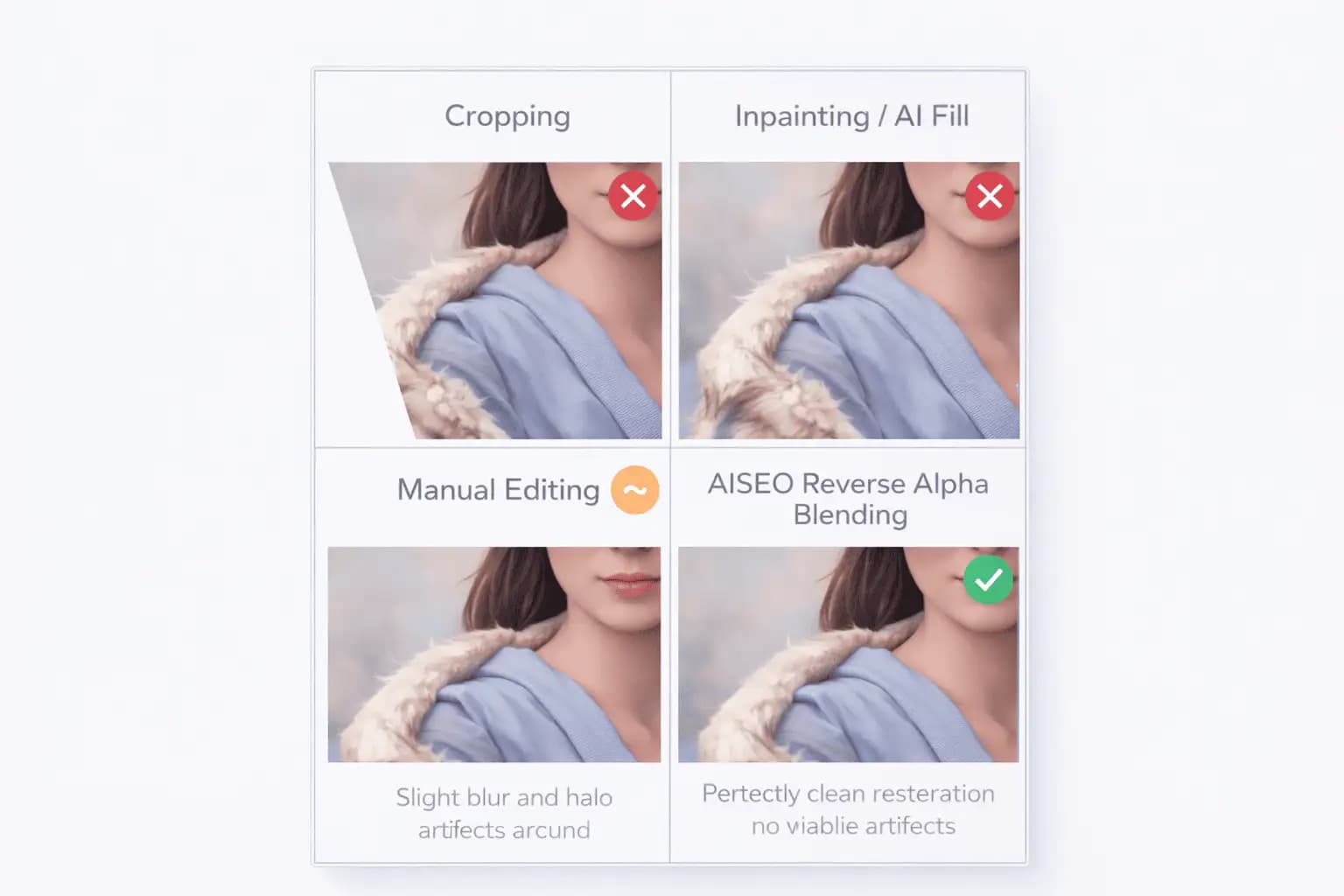
That's why this approach beats cropping, inpainting, or generative fill. Those methods either destroy or guess at pixel data. Reverse alpha blending recovers it, exact pixels, no guessing.
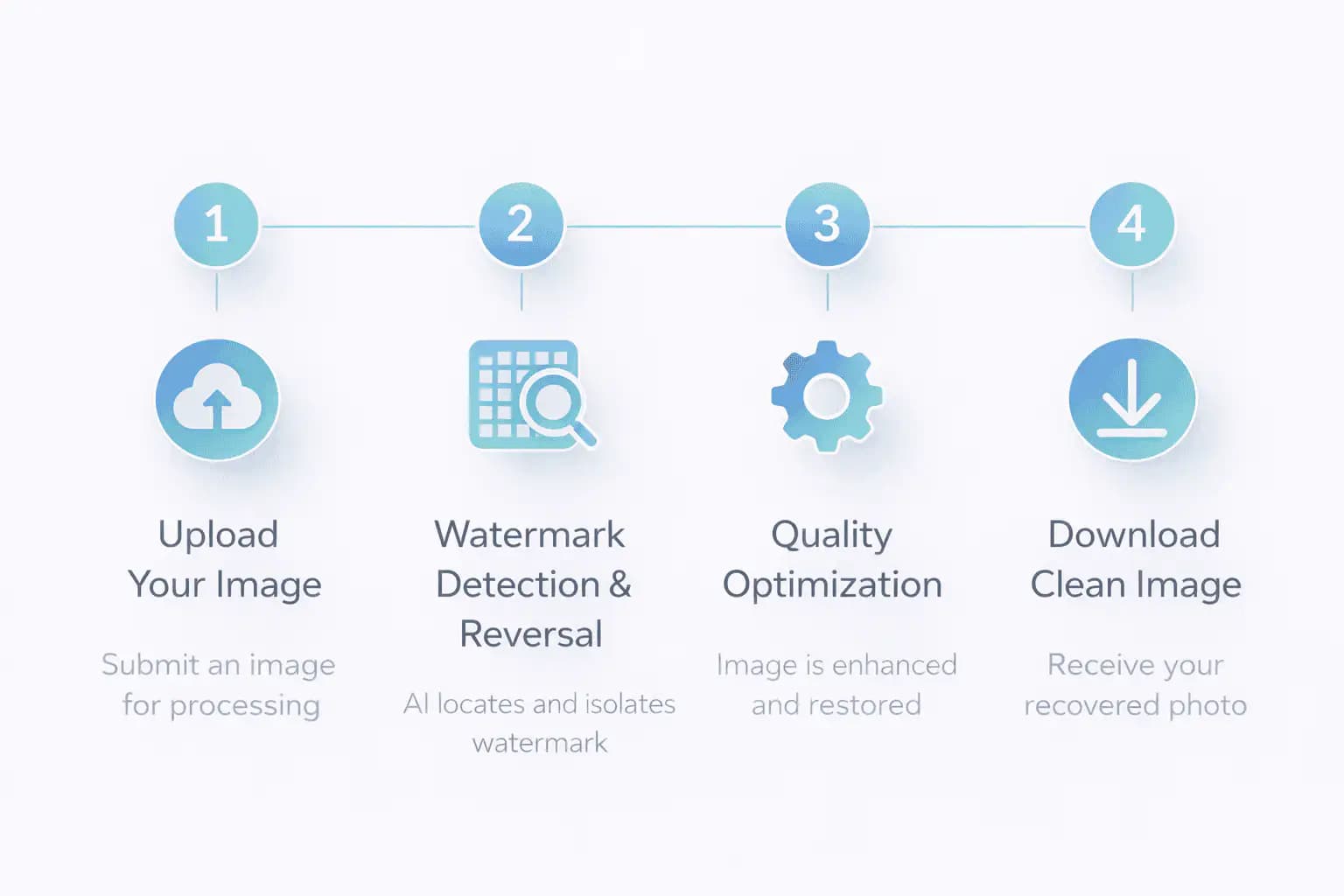
How to Remove Gemini Watermark, Step-by-Step Process
Choose a Gemini image, start removal, and download the cleaned result. Here's how the workflow works:
Step 1: Upload Your Gemini AI Images
Drag and drop an image into the tool, or click to browse your files. The remover accepts JPEG, PNG, and WebP images up to 20MB. Select one file at a time. The free allowance is three removals a day.
Step 2: Pixel-Level Watermark Reversal
Click "Remove Gemini Watermark" to upload and process your image. The tool identifies the watermark region in the bottom-right corner, selects the watermark size, and reverses the alpha blending there. Pixels outside the watermark region are left unchanged.
Step 3: Optimization and Re-encoding
The cleaned image is encoded as a PNG for download. Its dimensions stay the same. Check the preview for any remaining artifacts before using it.
Step 4: Download Your Cleaned Images
Download your cleaned image when processing finishes. The original file on your device stays unchanged. Use "Start over" to clean another file.
What Makes AISEO's Gemini Image Watermark Remover Different
There's more than one way to remove watermark gemini stamps on your images. Most methods, though, come with trade-offs that hurt them for professional use.
Cropping is the simplest approach, chop off the bottom-right corner. But if your composition is tight, you lose key content. And if you're working with product shots or social layouts where dimensions matter, cropping breaks the entire frame.
Generative fill and inpainting tools try to guess what's behind the watermark. They do okay on simple backgrounds, a flat sky, a solid wall. On textured surfaces, hair, fabric, fine patterns, or any detailed area, the AI fill leaves smudges, blurs, or unnatural patches. You end up fixing the fix.
Some people upload their Gemini images to ChatGPT or other chatbots and ask them to remove the watermark. Results vary wildly. Some refuse the request outright. Others do okay on plain backgrounds and fall apart on complex ones. And every re-process stacks on compression and quality loss.
AISEO reverses the watermark's alpha blending using the known mark pattern. This targets the affected pixels instead of generating replacement content.
Results depend on the source image and any earlier resizing or compression. Keep the original and compare the cleaned area before publishing.
What Our Tool Does
The free gemini watermark remover gives you full control over your AI-generated images. Here's what it handles:
Cleans Images With Precision
The tool targets the visible Gemini watermark in the bottom-right corner of your image. Use the cleaned result in social media, ads, slides, or product pages after checking its quality.
Preserves Original Quality
The image keeps its dimensions, and the reversal targets the watermark region. Cleaned images download as PNG files. Earlier edits and compression can affect how accurately the original pixels are recovered.
Fast and Efficient
Upload a file and start removal without installing editing software. Processing happens on our servers, so an internet connection is required.
Why You May Want to Remove the Gemini Watermark
If you use AI-generated visuals in any project, there are real reasons to want that watermark gone. It's not about hiding that you used AI, it's about owning your final output.
Privacy and Control Over Your Creative Tools
When you share an image with a visible Gemini mark, you're broadcasting which tool you used to make it. That might not matter for personal projects, but if you're working on confidential client work, distributing early drafts, or publishing under your own brand, you might prefer to keep your creative process private. A google gemini watermark remover gives you that choice without needing to crop or repaint anything.
Clean Deliverables for Professional Work
If you're building pitch decks, wireframes, marketing mockups, or UI layouts with AI-generated visuals, the watermark can chip away at the polish of your output. Clients and stakeholders don't always know the mark is just a Gemini logo, some may assume the image is watermarked stock or an unlicensed asset. Running it through a gemini ai watermark remover before you present removes that ambiguity entirely and keeps the focus on the work.
Consistent Visuals Across Mixed Projects
Designers often blend AI images with hand-made or photographed assets. When some shots have a watermark and others don't, the inconsistency stands out. Using AISEO to remove watermark from gemini images keeps every visual in your project looking the same, clean, professional, and uniform from frame to frame.
Social Media and Content Publishing
A cleaned image can fit more consistently into a social feed or publication. Removing a visible logo does not change a platform's disclosure rules or guarantee how it treats AI-generated content.
E-Commerce and Product Imagery
AI-generated product photos, banners, and lifestyle shots are showing up in more online stores every month. A small logo in the corner looks unprofessional on a product listing. Cleaning the watermark first keeps your storefront polished.
Research and Testing
If you study watermarking systems, build image processing tools, or experiment with AI detection, you may need clean reference files. A free gemini watermark remover gives you those baseline images without cost or friction, so your test set isn't capped by tool watermarks.

Bulk Gemini Watermark Removal for Large Image Projects
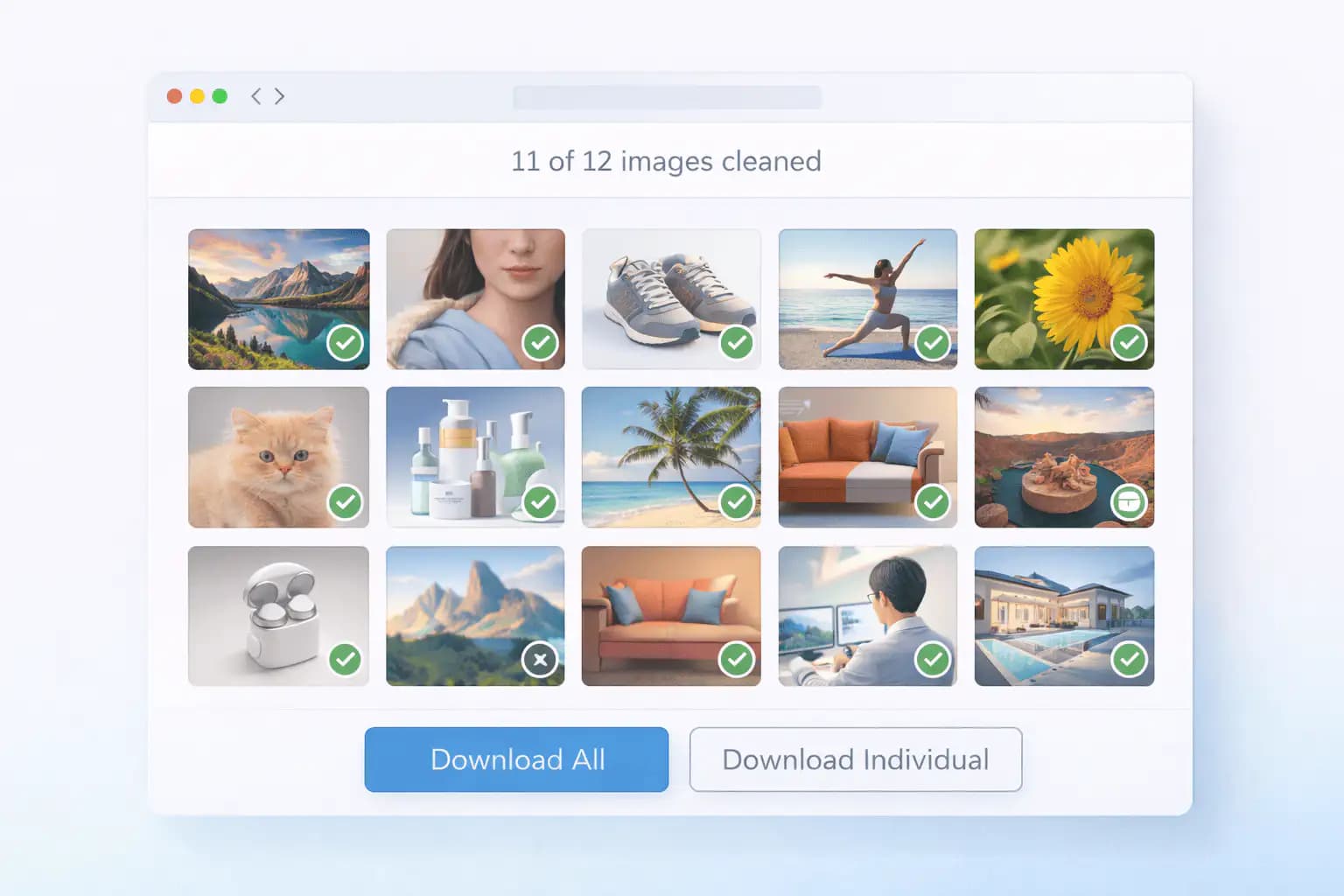
For a campaign or asset library, repeat the same workflow for each image. This version processes one file at a time and offers three free removals a day.
Upload a file, start removal, review the result, and download it before choosing the next image. Keep the original and cleaned files organized so you can compare them.
The same watermark reversal runs for every image. Results depend on each file's resolution and editing history. Bulk upload and a combined download are not currently available.
Privacy and Image Processing
Your image is uploaded to our servers when you start removal. Standard Gemini logo removal runs there. If you choose to also remove invisible SynthID, the image is sent to a processing provider.
Your original file on your device is not changed. Download the cleaned copy separately and review it before using it.
An internet connection is required throughout processing. This tool does not work offline.
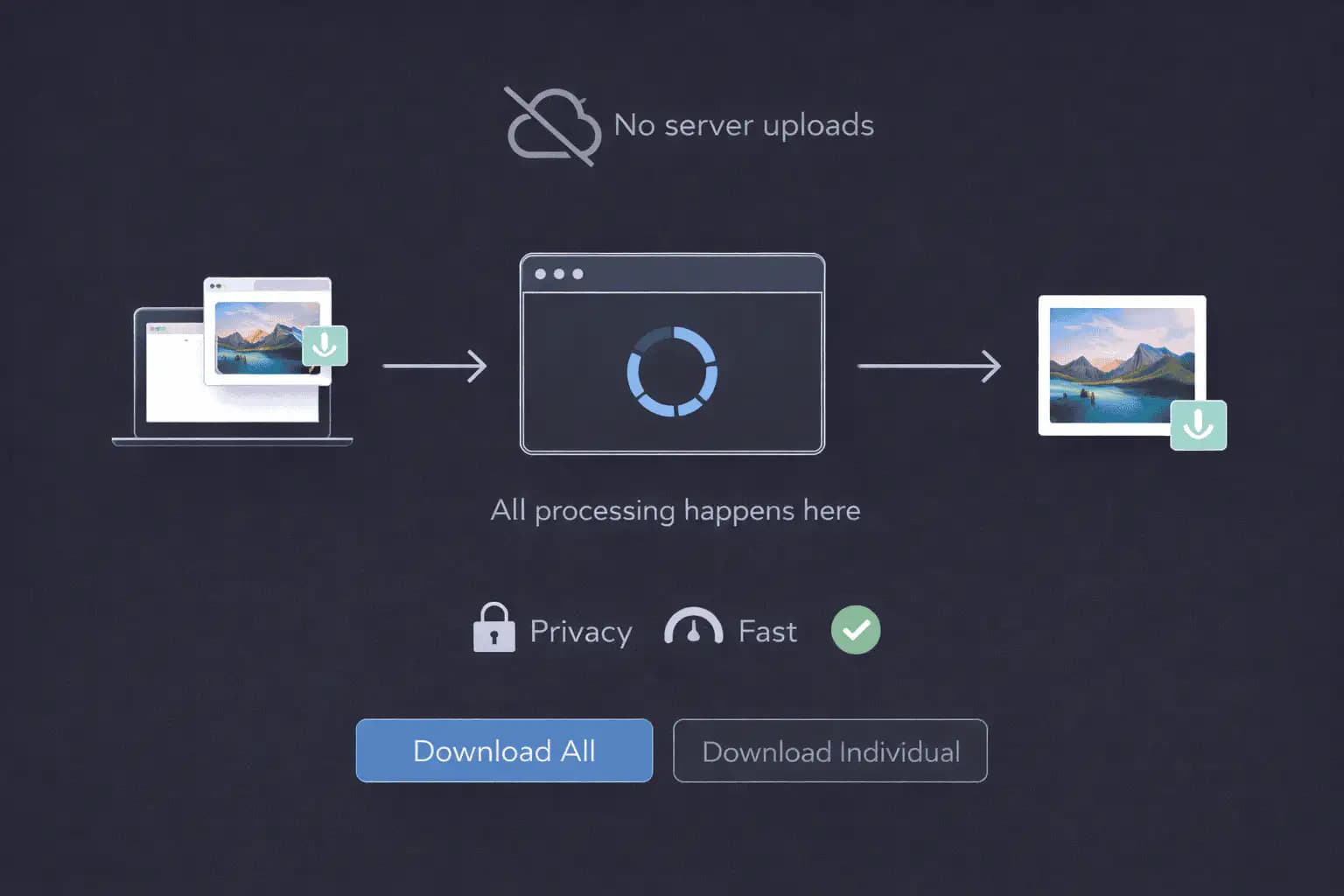
Image Quality Preservation
The Gemini remover reverses the watermark blend in the affected region instead of cropping the image.
Standard image removal preserves the image dimensions and produces a PNG file. It does not preserve the original JPEG or WebP encoding or guarantee every metadata field.
Resizing, filters, and compression can alter the watermark pattern. Use an original Gemini file for the best chance of a clean result, and inspect the preview for artifacts.
How AISEO Handles Image Processing
The server reads the image, chooses the appropriate watermark pattern, reverses its alpha blend, and encodes the cleaned result as PNG.
You can use the tool from a modern desktop or mobile browser without installing editing software. Image processing requires an internet connection.
The tool handles the 48×48 and 96×96 watermark patterns automatically. You do not need to select a size.
Best Practices for Using the Gemini Watermark Remover
For the cleanest output and the smoothest experience, keep these tips in mind:
Work from original files.
Upload AI-generated images before they've been resized, compressed, or filtered. Original pixels give you the most accurate restoration because the watermark data hasn't been distorted by prior edits.
Keep high-quality inputs.
High-resolution images produce sharper cleaned output. If a file was already over-compressed before you uploaded it, the cleaned version may look slightly softer, but that's the original quality, not the tool.
Process one image at a time.
Download and review each result before starting another file. The free allowance is three removals a day.
Keep a backup copy.
AISEO writes a separate cleaned file, your original is never modified or overwritten. Even so, it's smart to keep your source files organized for future reference.
Update your browser.
Use a current version of Chrome, Firefox, Safari, or Edge. If uploading or downloading fails, check your connection and retry.
Who This Tool Is For
Digital Marketers
Keep AI-generated ads, social creatives, and campaign visuals consistent with your other assets. Remove the visible logo, then review the result before publishing.
Content Creators and SEO Specialists
Publish AI-generated images across blogs, guides, and landing pages without visible marks hinting at their origin. When you remove gemini watermark from your content images, your pages stay polished and your visuals stay consistent with the rest of your brand. The gemini generated image watermark remover handles every shot in seconds.
Design Teams and Agencies
Reuse AI-made graphics across web, social, email, and print. The gemini watermark remover keeps brand consistency across every channel, so deliverables never include an unexpected logo that raises awkward questions in a stakeholder review.
Researchers and Developers
If you study watermarking techniques, test detection models, or build image pipelines, including a frame-level gemini logo remover from video workflow, you may need clean reference files. The tool produces baseline images for comparison and benchmarking.

Supported Formats
The AISEO free gemini watermark remover supports the three formats Google Gemini outputs most often:
- JPEG: widely compatible and lightweight for web images and social media.
- PNG: a lossless format with support for transparency.
- WebP: an optimized format used across websites and apps.
Images can be up to 20MB. Cleaned images download as PNG. Video uploads support MP4, WebM, and MOV up to 50MB.
Limitations and Important Considerations
No pre-scan detection
The tool doesn't check whether a specific image actually contains a Gemini watermark before processing. Every file gets the same treatment for consistency.
Large files may process slower
Images can be up to 20MB and videos up to 50MB. Larger files take longer to upload and process. Files above these limits are rejected.
Heavily edited images may yield softer results
If an image has been resized, re-compressed, or filtered multiple times before reaching the tool, the watermark data may have shifted. The removal will still run, but the result might not be as pixel-perfect as on a clean original. The same caveat applies to video screenshots that were re-encoded.
Browser compatibility
Use a current browser with file upload and download support. Processing requires an internet connection.
No guaranteed outcomes across all conditions
Because image models, formats, and prior edits vary, results may differ across image types and file histories. AISEO keeps quality intact, but how external platforms behave with cleaned files after publishing is outside the tool's control.
Frequently Asked Questions
Upload a JPEG, PNG, or WebP image and click "Remove Gemini Watermark". The server reverses the visible mark and returns a PNG file for download.
Yes. Every image Google Gemini generates, including outputs from the Gemini 2.5 Flash Image model nicknamed 'Nano Banana', includes a visible semi-transparent star logo in the bottom-right corner. There's no setting that disables it. The watermark is alpha-blended into the pixel data rather than layered on top, so a nano banana watermark remover and a gemini watermark remover target the same exact mark.
The tool reverses the alpha blend in the watermark region. Use an original, unedited image for the best result. Resizing and compression can leave artifacts, so compare the output before using it.
Yes. You can remove three watermarks a day with the free allowance, without signing up.
Yes. Use a modern mobile browser, choose your image, start removal, and download the result. Processing happens on our servers and requires an internet connection.
This version processes one file at a time. Download the cleaned result and choose another file to continue. Bulk upload and combined downloads are not currently available.
Yes. Your image is uploaded for server processing when you start removal. If you choose invisible SynthID removal too, it is also sent to a processing provider. Your original file on your device is not changed.
The tool targets the watermark region and preserves the image dimensions. It exports PNG files. Edited or compressed images may retain artifacts, so inspect the result.
JPEG, PNG, and WebP images up to 20MB are supported, with PNG output. MP4, WebM, and MOV video uploads can be up to 50MB.
Yes. As long as the visible Gemini watermark is still in the image data, the tool can process it. Files that have been heavily compressed, resized, or filtered multiple times may produce slightly softer results inside the watermark region, but for most images, the output is still clean and usable.
Yes. The Gemini watermark follows the same pattern whether your image came from the Gemini app, Google AI Studio, or any other Gemini-powered generation tool. The google gemini remove watermark process works identically across every source.
No. Removal runs on our servers and requires an internet connection.